
The $150 Challenge: What We’re Building and Why
Series: Building a SQL Server Always On Lab in Azure
Before You Begin
This is the first post in the series. There are no prerequisites beyond an active Azure subscription with the Visual Studio credit activated. If you haven’t done that yet, the next post covers it as its first step.
Who Is This Series For
I’m a DBA with about ten years of experience. I feel like know SQL Server inside and out. Whether it is execution plans, AG internals, backup strategies, or something in between, I feel comfortable with all of it. What I’ve been less confident about is a lot of what surrounds SQL Server. It could be the networking, the Windows configuration, or the Active Directory setup that the sysadmin team always handled while I waited for a server to be handed to me.
This series is my attempt to understand the full picture by building it myself, from scratch, in Azure and writing down everything I learn along the way.
If you’re a DBA, this will hopefully teach you enough Windows administration and Azure networking to stop feeling like a passenger when infrastructure conversations happen. If you’re a sysadmin, the SQL Server sections will explain why DBAs make the configuration requests they do, not just what those requests are. If you’re on the security side of things, the series tries to make a point to call out every decision that has a security implication and explains the reasoning, not just the steps.
My goal is for anyone in a tech background to be able to do this just like me, I try not to assume you’ve done any of this before and explain everything.
So What Are We Building
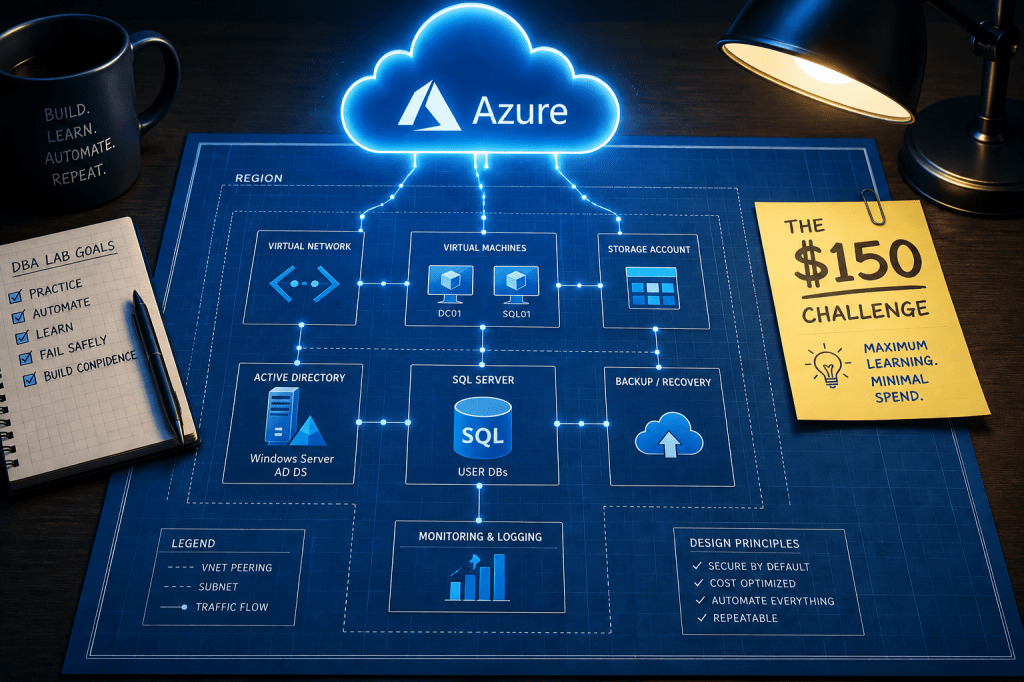
By the end of this series, we’ll have a Management/Monitoring server and a fully functional SQL Server Always On Availability Group running in Azure, built on a real domain, with proper networking, service accounts, and backups. The environment will look like this:
| Machine | Role | Size | Private IP |
| JUMPBOX01 | Management/Monitoring Server | B2s | 10.10.0.4 |
| DC01 | Domain Controller and file share witness | B2s | 10.10.1.4 |
| SQL01 | SQL Server Primary | D2s_v3 | 10.10.2.4 |
| SQL02 | SQL Server Secondary | D2s_v3 | 10.10.2.5 |
All four machines live inside a single Azure Virtual Network (vnet-pcsql-lab-eus-001, 10.10.0.0/16) in East US, divided into dedicated subnets by role. The only machine with a public IP is JUMPBOX01, and that IP is locked to your home IP address via a Network Security Group. Everything else is completely private.
The domain is procuresql.local. The company in all examples is Procure SQL.
The SQL nodes will be members of a Windows Server Failover Cluster (SQLCluster01) with DC01 providing the third vote via a file share witness at \\DC01\SQLWitness. The Availability Group and listener will follow the naming pattern we’ve established for the series, but we’ll get to that later in this page.
Backups go to Azure Blob Storage. Service accounts are Group Managed Service Accounts. No plaintext passwords in scripts, anywhere.
Why Azure? Why $150?
The Visual Studio subscription credit gives you $150 per month in Azure resources. It resets monthly, it doesn’t roll over, and if you go over the limit Azure will suspend your subscription rather than charge you, which makes it a hard ceiling that forces you to actually think about cost, which is a valuable skill in itself.
Here’s what this environment costs assuming 9 hours of uptime per day (8am to 5pm), 22 working days a month, with auto-shutdown handling the rest. If you don’t use it the entire work day and/or if you don’t use it every work day, these estimated costs will be lower.
| Resource | Notes | Est Monthly Cost |
| JUMPBOX01 – B2s | 9hrs/day × 22 days @ $0.042/hr | $8 |
| DC01 – B2s | 9hrs/day × 22 days @ $0.042/hr | $8 |
| SQL01 – D2s_v3 | 9hrs/day × 22 days @ $0.188/hr | $37 |
| SQL02 – D2s_v3 | 9hrs/day × 22 days @ $0.188/hr | $37 |
| OS Disks (x4 Standard SSD) | Disks are billed at rest, this covers each VM’s C drive | $8 |
| SQL Data Disks (x2 Premium SSD P10) | One per SQL AG Node | $10 |
| SQL Log Disks (x2 Premium SSD P10) | One per SQL AG Node | $10 |
| Blob Storage for backups | 50GB of Azure Locally Redundant Storage (LRS) | $3 |
| Internal Load Balancer and Public IP | ILB for the AG Listener, Static Public IP for JUMPBOX01 | $7 |
| Key Vault, VNet, NSGs | Free Tier | $0 |
| Total | $138 |
A note on the SQL disks: unlike a traditional active/passive failover cluster where the storage floats between nodes, an Always On AG keeps a completely independent copy of every database on each replica. SQL01 and SQL02 each need their own data disk and their own log disk.
The $12 of headroom is tighter than it looks. Disks are billed whether the VM is running or not, so the ~$28 in disk costs hits every month regardless of how disciplined you are with uptime. The budget alert we’ll set in the next post will warn you at $140, so at $138 estimated, a few extra hours of VM uptime in a given month is genuinely enough to clip the ceiling. Which brings me to the final note on cost.
Auto-shutdown is non-negotiable here. A single D2s_v3 left running 24/7 for a full month costs around $137 by itself. Two of them running wide open and you’ve blown the budget before you’ve touched a SQL setting. We’ll configure auto-shutdown on every VM at deploy time, not as an afterthought.
How The Series Is Structured
I am trying to break this down so that each post covers a single topic. Every post follows the same structure:
- Why we’re doing this – the reasoning behind the decision, not just the steps
- How to do it – step by step, with individual commands and code blocks inline as you read
- How to verify it worked – because “it didn’t throw an error” is not a test
Throughout each post, individual steps are broken into small code blocks so you read what you’re about to do, do that one thing, and then move on. At the end of every post is a consolidated PowerShell script that runs everything from that post in one shot, which I always found to be useful once you’ve read through it once and understand what it’s doing.
Posts reference each other. If something was set up in an earlier post, you’ll see a link like “we set the static IPs back in post 6” so you can jump back if you need a refresher without the current post re-explaining it.
If you’re following along from the beginning, each post’s testing section produces a state that the next post assumes. If something breaks, the testing sections are your breadcrumb trail back to where things went sideways.
Some Additional Notes
Naming Conventions
I have a naming convention for things that works for me, it might not work for you. But if you want to try to follow it, every resource in this series follows this one. This table is your reference for the entire series.
| Thing | Convention | Example |
| Servers | ALLCAPS## | SQL01, DC01, JUMPBOX01 |
| Domain (FQDN) | procuresql.local | |
| NetBIOS | PROCURESQL | |
| Databases | PascalCase | HRSystem, WidgetTracker |
| AG name | AppNameAG (max 14 characters) | HRSystemAG |
| AG listener | AppNameAGL (max 15 characters) | HRSystemAGL |
| Cluster | SQLCluster01 | |
| File Share Witness | \\DC01\SQLWitness | |
| Service Accounts | svc_ServiceName (gMSA) | svc_SQLEngine$, svc_SQLAgent$ |
| Resource Group | rg-{workload}-{env} | rg-pcsql-lab |
| VNet | vnet-{workload}-{env}-{region}-{instance} | vnet-pcsql-lab-eus-001 |
| Subnets | snet-{role}-{env}-{instance} | snet-mgmt-lab-001 |
| Storage Accounts | st{type}{workload}{env}{instance} | stblobbackuplab001 |
| Network Security Groups | nsg-{subnet}-{env}-{instance} | nsg-mgmt-lab-001 |
Why A File Share Witness Instead Of A Cloud Witness
This comes up quickly when you start reading about Windows Server Failover Clustering in Azure. Microsoft’s own documentation often defaults to Azure Blob Storage as the cluster quorum witness, and it works fine. We’re doing something slightly different: using DC01 as a file share witness instead.
There are two reasons. First, we have a domain controller, so we have a third machine that can serve as the tiebreaker vote without adding cost. This also gives you insight into how a typical on prem setup would work. Second and more importantly for this series, understanding why WSFC needs a third vote, and how a file share witness actually provides it, teaches you more about quorum mechanics than pointing a script at a blob container does. The manual approach here is intentional.
What’s Next
Post 2 will be Subscription Setup & Cost Guardrails is where we start actually touching Azure. We’ll activate the Visual Studio credit, create the resource group, set up budget alerts, and configure the auto-shutdown policy that keeps us inside the $150 ceiling for the rest of the series.

